

Tonfotos and TonfotosSync Review: How I Organized My Digital Archive Without Cloud Subscriptions
Anyone who regularly creates content, works in marketing, or simply runs a personal blog eventually faces the same problem: digital chaos. Photos from smartphones and on-location shoots, screenshots, advertising creatives, and personal archives gradually turn into a huge, unmanageable collection of files.
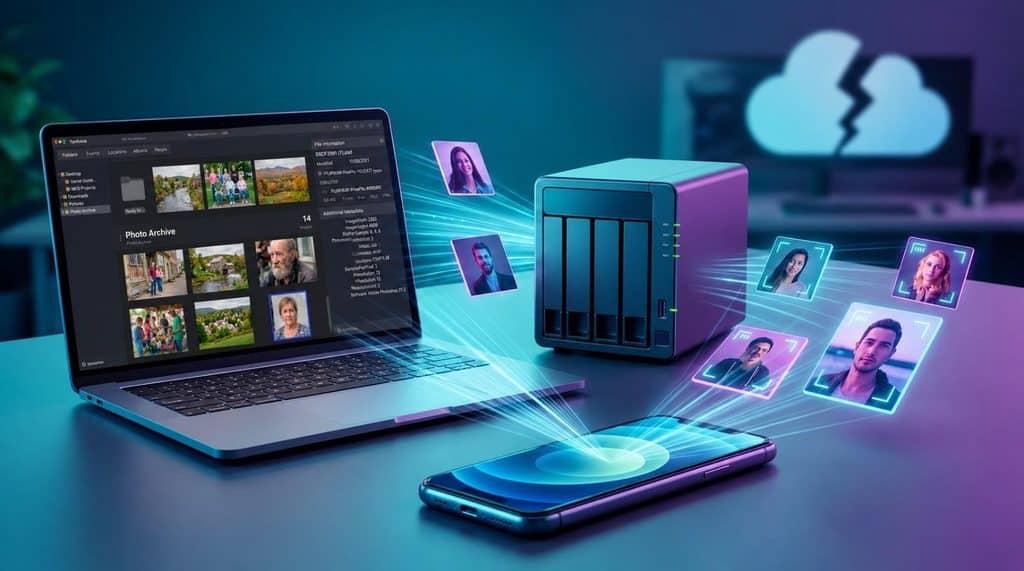
For a long time, I relied on cloud services such as Google Photos and iCloud. However, steadily rising subscription costs, storage limits, and concerns about how third-party algorithms process media files led me to look for an alternative. I needed a self-contained, fast, and reliable system that could organize terabytes of photos and videos locally without requiring a monthly payment.
In this review, I’ll share my experience with Tonfotos desktop software and the TonfotosSync mobile app, which offer a fully local approach to managing a digital archive.
Why Local Storage Is Relevant Again
Tonfotos’s main advantage is that it doesn’t require you to upload files to third-party cloud services. The program works directly with your data wherever it is stored: on your computer’s hard drive, external SSDs, or network-attached storage (NAS).
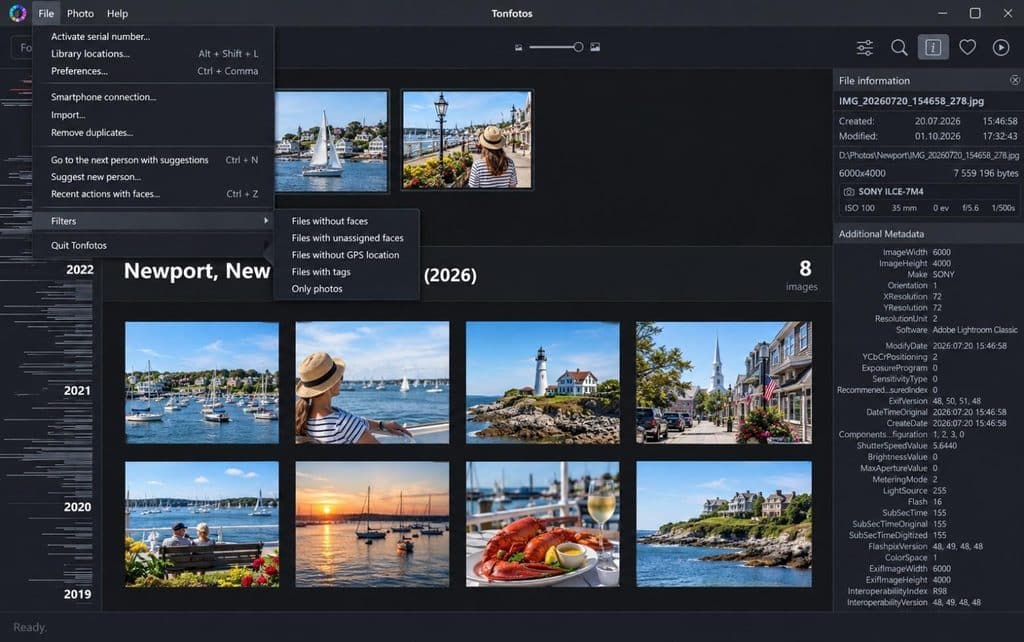
The system consists of two main components:
- Tonfotos (desktop software). Acts as an intelligent hub for managing your photo library on Windows, macOS, and Linux.
- TonfotosSync (mobile app). Acts as a wireless bridge for transferring new photos from a smartphone to a PC, with the available automation depending on the mobile operating system.
This setup allowed me to create a unified storage system within my local network.
How I Use Tonfotos: A Practical Look at Its Features
After installing Tonfotos and specifying the folders to include, the program starts indexing them in the background. Unlike resource-heavy professional editors, the indexing process runs smoothly without monopolizing system resources.
1. Local AI-Powered Face Recognition
In my view, one of Tonfotos’s most practical features is its AI-powered system for automatically finding and grouping faces. To get started, users simply identify a person in a few photos. The neural network then searches for that person throughout the rest of the archive.
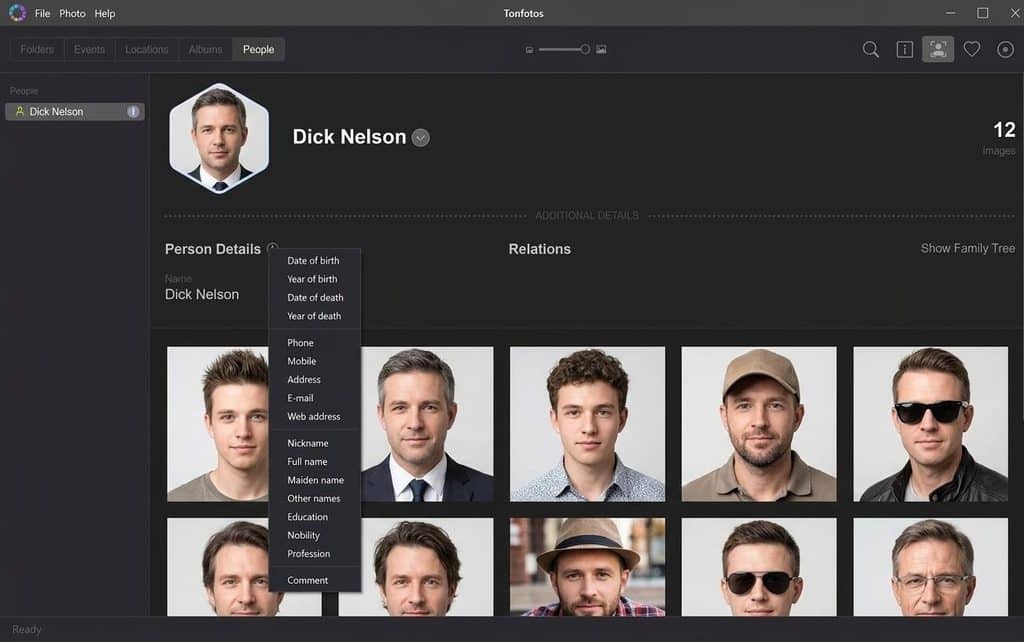
This feature can be useful not only for personal photos but also for work:
- For bloggers and marketers: Quickly find photos featuring a specific model, speaker, or brand ambassador.
- For content creators: Find photos from past events or meetings by searching for key participants.
- For organizing a family archive: Before I discovered Tonfotos, my photo collection was a mess. We travel often, and it was almost impossible to find photos from a particular date or place. Now, the photos are organized into date-based folders.
All processing takes place on your PC. Biometric data is not sent to external servers, which helps reduce the risk of personal information being exposed. That’s something I really appreciate.
2. Geolocation, Timeline, and Navigation
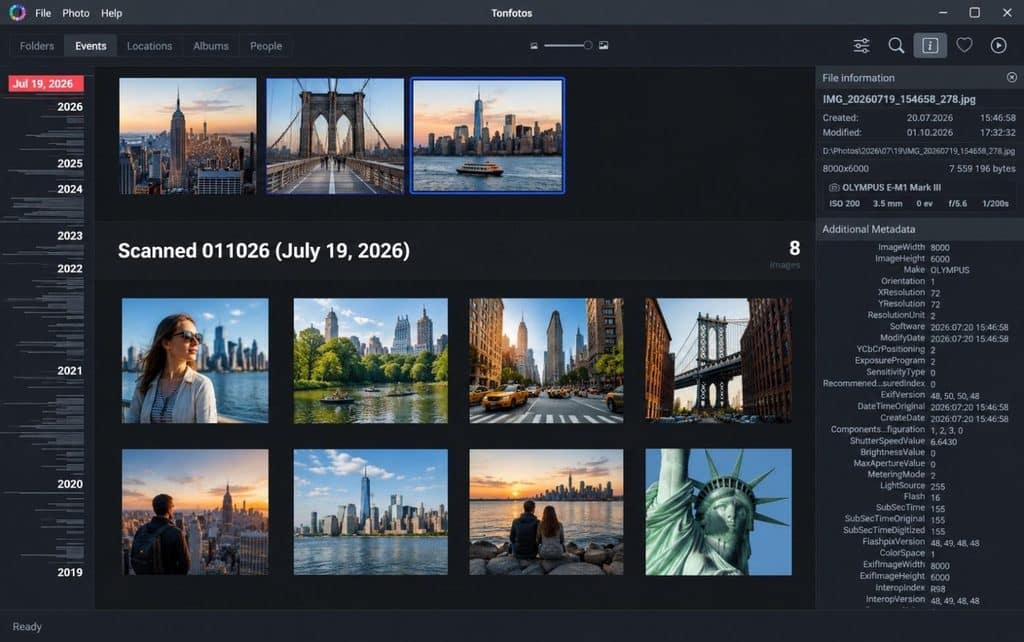
Tonfotos automatically reads a file’s EXIF metadata. The media library can be explored through an interactive calendar and world map. If your photos contain GPS tags, you can easily find pictures taken in a particular city or during a specific trip by clicking the relevant location on the map.
3. Finding Duplicates and Freeing Up Space
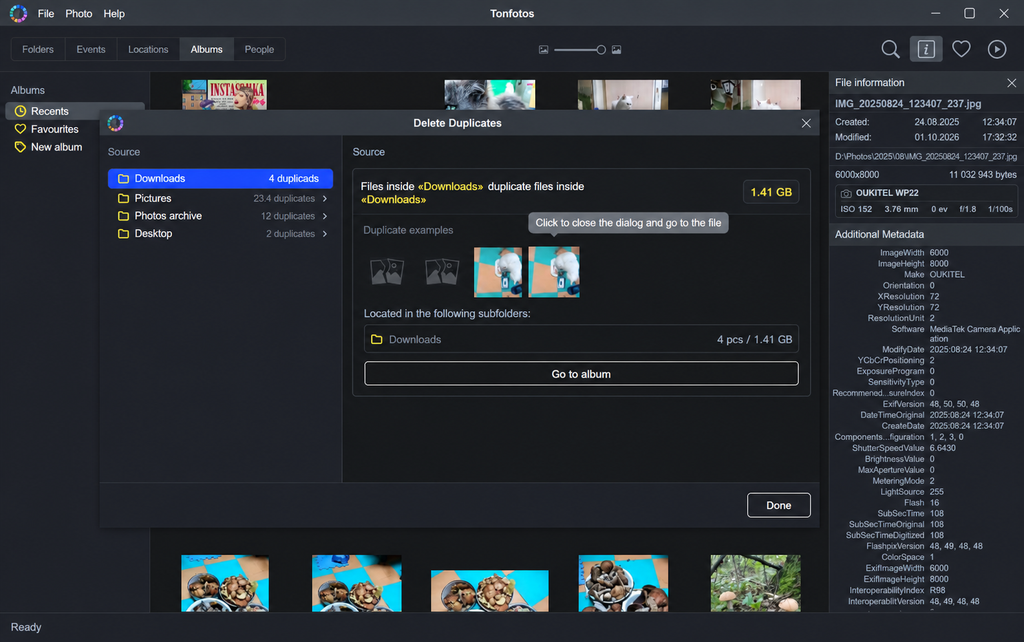
When working with content, duplicate files inevitably accumulate. Tonfotos’s built-in duplicate finder can identify exact matches and similar shots, helping me free up gigabytes of space on my hard drives and NAS.
Automating Smartphone Imports with TonfotosSync
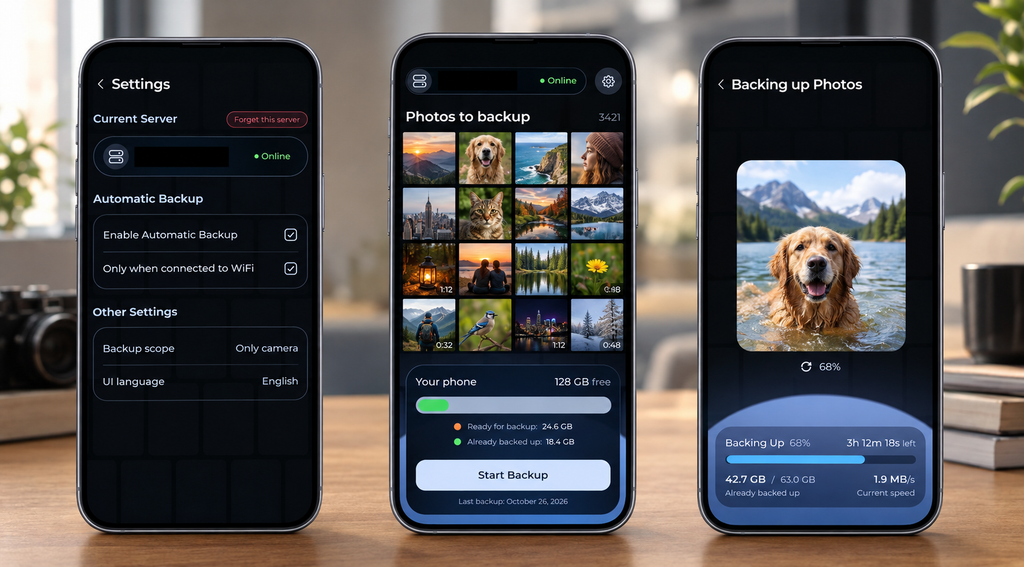
One problem with many local photo cataloging tools—and one I suspect I’m not alone in encountering—is the need to connect a smartphone to a PC with a cable whenever you want to transfer new photos. TonfotosSync, available for iOS and Android, helps solve this problem.
How Wireless Synchronization Works:
1. Install the app on your mobile device and pair it with the desktop version of Tonfotos by scanning a QR code.
2. Synchronization takes place over your home or office Wi-Fi network.
3. When the smartphone is connected to Wi-Fi and charging, new photos and videos are copied to a selected folder on your PC or NAS automatically, depending on the operating system.
Thanks to this setup, I no longer rely on paid cloud storage for backing up mobile photos. Content from my smartphone now reaches my central archive wirelessly, without manual selection or third-party intermediaries.
Comparison with Alternative Programs
Compared with the photo-organizing programs I used in the past, Tonfotos strikes a balance between complex professional systems and standard cloud services:
- Google Photos and iCloud: Tonfotos doesn’t require a monthly subscription (a lifetime license is available) and keeps data processing local.
- Mylio Photos: Mylio uses a subscription model, while Tonfotos offers a one-time purchase, which can be more cost-effective over the long term.
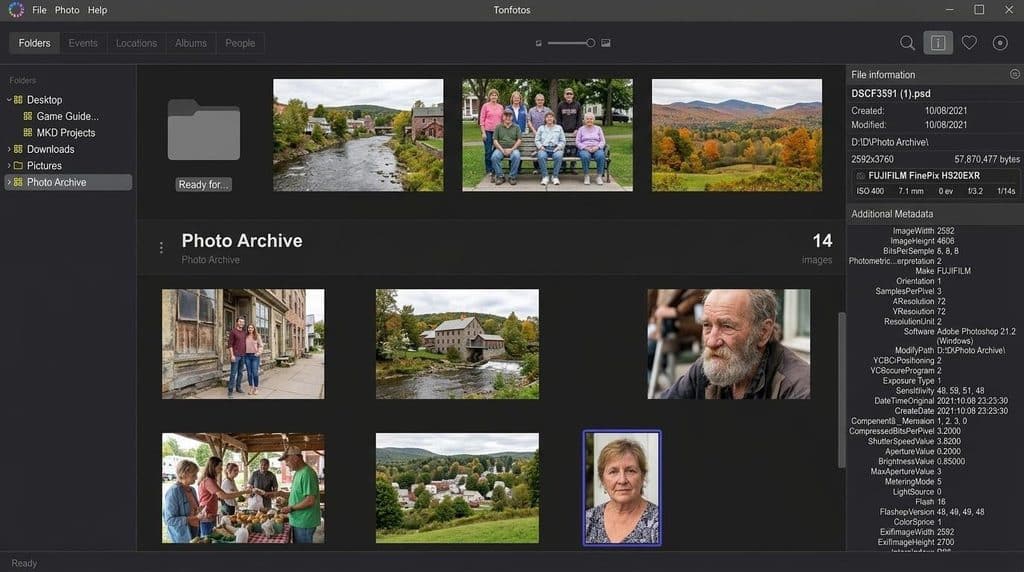
- digiKam: digiKam is a powerful, free, open-source tool, but its crowded interface made it difficult for me to learn. Tonfotos has a modern, straightforward interface that is easy to get started with after installation.
Pros and Cons
What I Liked:
- Lifetime license: No recurring subscription payments.
- Privacy: Offline data processing and local AI-powered face recognition.
- Convenient mobile imports: Wireless synchronization through TonfotosSync over a local Wi-Fi network.
- Cross-platform support: Windows, macOS, Linux, Android, and iOS.
- User-friendly interface: Intuitive and easy-to-use software.
Things to Keep in Mind:
- Initial indexing: When processing very large archives (100,000+ files), the first scan may take some time and use CPU resources.
- Focused functionality: The program is designed for cataloging, viewing, and sorting photos, rather than advanced professional color grading or retouching.
My Personal Choice After Hundreds of Gigabytes of Chaos
Over the years, I tried dozens of cataloging tools, from heavyweight professional programs with complex databases to major services such as Google Photos and Mylio. I’ve finally found a balance. Monthly subscription fees and repeated “cloud storage is full” notifications are now a thing of the past for me.
The combination of Tonfotos and TonfotosSync has become the ideal solution for me. I get the benefits of smart AI-powered search and wireless smartphone imports, while keeping my media archive local, fast, and under my control. If you’re tired of paying for storage on someone else’s servers and want more direct control over your photos without complicated setup, I recommend giving this combination a try.
Anyone who regularly creates content, works in marketing, or simply runs a personal blog eventually faces the same problem: digital chaos. Photos from smartphones and on-location shoots, screenshots, advertising creatives, and personal archives gradually turn into a huge, unmanageable collection of files.
For a long time, I relied on cloud services such as Google Photos and iCloud. However, steadily rising subscription costs, storage limits, and concerns about how third-party algorithms process media files led me to look for an alternative. I needed a self-contained, fast, and reliable system that could organize terabytes of photos and videos locally without requiring a monthly payment.
In this Tonfotos review, I’ll share my experience with Tonfotos desktop software and the TonfotosSync mobile app, which offer a fully local approach to managing a digital archive.
Why Local Storage Is Relevant Again
Tonfotos’s main advantage is that it doesn’t require you to upload files to third-party cloud services. The program works directly with your data wherever it is stored: on your computer’s hard drive, external SSDs, or network-attached storage (NAS).
The system consists of two main components:
- Tonfotos (desktop software). Acts as an intelligent hub for managing your photo library on Windows, macOS, and Linux.
- TonfotosSync (mobile app). Acts as a wireless bridge for transferring new photos from a smartphone to a PC, with the available automation depending on the mobile operating system.
This setup allowed me to create a unified storage system within my local network.
How I Use Tonfotos: A Practical Look at Its Features
After installing Tonfotos and specifying the folders to include, the program starts indexing them in the background. Unlike resource-heavy professional editors, the indexing process runs smoothly without monopolizing system resources.
1. Local AI-Powered Face Recognition
In my view, one of Tonfotos’s most practical features is its AI-powered system for automatically finding and grouping faces. To get started, users simply identify a person in a few photos. The neural network then searches for that person throughout the rest of the archive.
This feature can be useful not only for personal photos but also for work:
- For bloggers and marketers: Quickly find photos featuring a specific model, speaker, or brand ambassador.
- For content creators: Find photos from past events or meetings by searching for key participants.
- For organizing a family archive: Before I discovered Tonfotos, my photo collection was a mess. We travel often, and it was almost impossible to find photos from a particular date or place. Now, the photos are organized into date-based folders.
All processing takes place on your PC. Biometric data is not sent to external servers, which helps reduce the risk of personal information being exposed. That’s something I really appreciate.
2. Geolocation, Timeline, and Navigation
Tonfotos automatically reads a file’s EXIF metadata. The media library can be explored through an interactive calendar and world map. If your photos contain GPS tags, you can easily find pictures taken in a particular city or during a specific trip by clicking the relevant location on the map.
3. Finding Duplicates and Freeing Up Space
When working with content, duplicate files inevitably accumulate. Tonfotos’s built-in duplicate finder can identify exact matches and similar shots, helping me free up gigabytes of space on my hard drives and NAS.
Automating Smartphone Imports with TonfotosSync
One problem with many local photo cataloging tools, and one I suspect I’m not alone in encountering, is the need to connect a smartphone to a PC with a cable whenever you want to transfer new photos. TonfotosSync, available for iOS and Android, helps solve this problem.
How Wireless Synchronization Works
- Install the app on your mobile device and pair it with the desktop version of Tonfotos by scanning a QR code.
- Synchronization takes place over your home or office Wi-Fi network.
- When the smartphone is connected to Wi-Fi and charging, new photos and videos are copied to a selected folder on your PC or NAS automatically, depending on the operating system.
Thanks to this setup, I no longer rely on paid cloud storage for backing up mobile photos. Content from my smartphone now reaches my central archive wirelessly, without manual selection or third-party intermediaries.
Tonfotos vs. Alternative Programs
Compared with the photo-organizing programs I used in the past, Tonfotos strikes a balance between complex professional systems and standard cloud services:
- Google Photos and iCloud: Tonfotos doesn’t require a monthly subscription (a lifetime license is available) and keeps data processing local.
- Mylio Photos: Mylio uses a subscription model, while Tonfotos offers a one-time purchase, which can be more cost-effective over the long term.
- digiKam: digiKam is a powerful, free, open-source tool, but its crowded interface made it difficult for me to learn. Tonfotos has a modern, straightforward interface that is easy to get started with after installation.
Tonfotos Pros and Cons
What I Liked
- Lifetime license: No recurring subscription payments.
- Privacy: Offline data processing and local AI-powered face recognition.
- Convenient mobile imports: Wireless synchronization through TonfotosSync over a local Wi-Fi network.
- Cross-platform support: Windows, macOS, Linux, Android, and iOS.
- User-friendly interface: Intuitive and easy-to-use software.
Things to Keep in Mind
- Initial indexing: When processing very large archives (100,000+ files), the first scan may take some time and use CPU resources.
- Focused functionality: The program is designed for cataloging, viewing, and sorting photos, rather than advanced professional color grading or retouching.
My Personal Choice After Hundreds of Gigabytes of Chaos
Over the years, I tried dozens of cataloging tools, from heavyweight professional programs with complex databases to major services such as Google Photos and Mylio. I’ve finally found a balance. Monthly subscription fees and repeated “cloud storage is full” notifications are now a thing of the past for me.
The combination of Tonfotos and TonfotosSync has become the ideal solution for me. I get the benefits of smart AI-powered search and wireless smartphone imports, while keeping my media archive local, fast, and under my control. If you’re tired of paying for storage on someone else’s servers and want more direct control over your photos without complicated setup, I recommend giving this combination a try.
