

CapCut Web: Tool for Effortless Online Video Editing
So here’s the thing—CapCut Web is kinda everywhere now. You hear people talk about it like it’s the “free online miracle” for video editing, and honestly, they’re not totally wrong.
I’ve been messing around with video editing tools for years (sometimes on my desktop app, sometimes on my phone, sometimes just random web editors that crash halfway through an edit), but this one feels… different.
And before I dive in, lemme just say—if you’ve ever tried making TikToks at 3AM and your app freezes right when you’re syncing the music with your video clips… yeah, you know the pain.
So when I first opened up CapCut Web Editor on my browser, I was like “okay, let’s see how long before it lags or throws an error message.” Spoiler: it didn’t (well, except that one time my WiFi died mid-export, but that’s not CapCut’s fault).

Capcut Web
Alright, basics first. CapCut Web is literally just CapCut but online—you don’t gotta download or install some giant desktop app (unless you want to, cause they do have one), you just hit the browser, log in, and boom you’re editing.
The cool part? You can start a new project straight from your computer, or even pull in stuff from Google Drive. Which saves a lot of time cause half my files are floating around in random folders. I’ll upload something, forget it exists, then remember a week later when I actually need that clip.
Anyway, it’s free. Like 100% free. And I know people side-eye that sometimes cause “free” usually means there’s some hidden paywall—but with CapCut Web, you can actually edit, export, and create videos without slapping down your credit card. You just need an account. Sign in and you’re good.
Oh, and it works on any device—phone, tablet, whatever. So yeah, no excuses.

Video Editing
Let’s talk video editing in general for a sec. Cause, real talk, it’s not just about cutting clips together anymore. It’s storytelling, mood-setting, making sure the sounds match the mood, syncing captions, slapping on those ridiculous but somehow necessary stickers, and making sure your transitions don’t scream “PowerPoint 2005.”
CapCut Web makes all that less painful. Like, you’ve got your video timeline right there, drag stuff in, move it around, split, import, sync, review. It’s that old-school editor vibe but without the scary interface where you’re like “what does this 700-button toolbar even do??”
Plus, the AI powered tools are sneaky-good. Auto captions, auto beat sync for music, even some filters that just know when your lighting sucks and fix it. I’ve used some paid editors that don’t do half that.
But yeah, don’t think it’s just magic either. You still gotta put in some effort—play with transitions, mess with fonts, experiment with effects. That’s how you learn.
Video Clips

Ah yes, the chaos of video clips. You know when you’re editing and you’ve got like 37 random files? One’s named “final.mp4,” another’s “final2.mp4,” and then there’s “final_final_really_this_one.mov.” Yeah, we’ve all been there.
CapCut Web makes dragging all that into the timeline kinda smooth. You can preview them, trim the clips down, even just split them mid-scene if you need to cut something awkward.
Side note—sometimes the browser gets cranky if you dump like gigabytes of footage at once. My advice: don’t. Upload in chunks. Keep the project tidy. Otherwise you’re scrolling forever trying to find that one-second clip you swear you imported.
Also, it’s got that match cut tool where you can sync clips to beats in your music. That’s basically what keeps TikTok running, let’s be real.
Video Editor
So what makes a good video editor? It’s not just the app or the tool (though that helps). It’s how you use it. The actual human side—like your taste, your pacing, your sense of humor, even how you pick sounds or fonts.
CapCut Web as a video editor is like training wheels for beginners but still powerful enough if you wanna get serious. You’ve got all the basics: cut, drag, split, add text, tweak filters. But you also get advanced stuff like auto captions, motion tracking (kinda wild), and AI powered tools for speech-to-text or removing background noise.
And let’s be honest, not everyone wants to learn Premiere Pro. I mean, I tried once and after 20 minutes of staring at that interface, I rage-quit. With CapCut Web, you can actually just… start. Like right away. No course, no tutorials. Just click around till it makes sense.
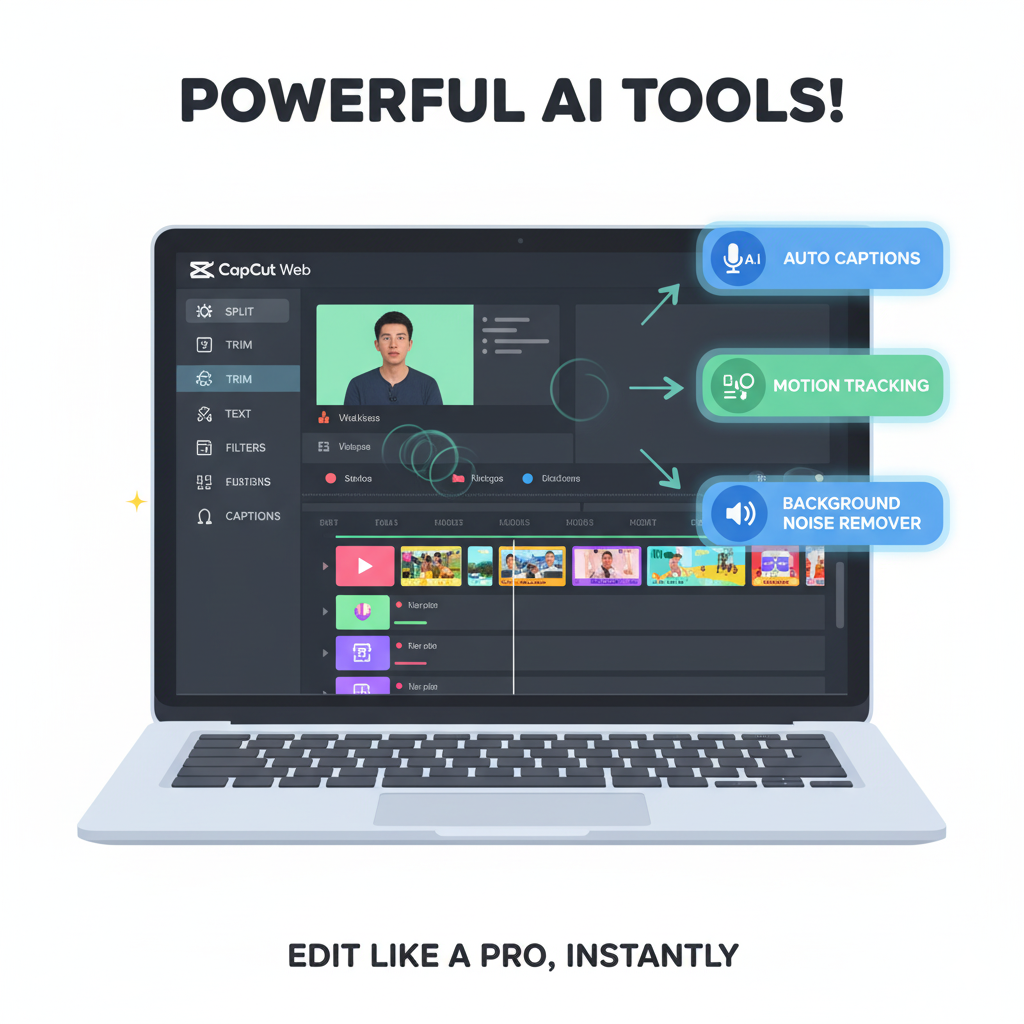
Capcut Web Editor
Now, lemme rave about the CapCut Web Editor itself. The interface is clean—like, not “boring clean,” but clean enough that you don’t get lost. The tabs make sense. The timeline doesn’t feel like some alien spreadsheet.
I like that you can navigate without digging through endless menus. Want to add text? It’s right there. Want filters? Boom, one click. Need to export your final video? Giant button up top. No hunting.
They’ve also got these templates that kinda save your life when you’re stuck. Like if you don’t know how to start, just pick a template, swap out the media, change the fonts, done. Not original, but hey—it works when you’ve got a deadline.
And yes, it’s web-based, so if your browser decides to crash, make sure you hit save often. I learned that the hard way. CapCut does auto-save, but still—don’t trust the cloud gods completely.
Random Stuff People Forget
FAQs about CapCut Web
Q: Is CapCut Web really free?
Yep. No hidden fees. Just need an account.
Q: Can I use it on my phone?
Yeah, but honestly the mobile app is better than the web version for phone. Use web on a bigger device.
Q: Does it auto-save projects?
Mostly. But still, hit that save button yourself. Trust issues, you know.
Q: Can I upload from Google Drive?
Totally. Just connect it and grab your files.
Q: What about exporting to YouTube or Facebook?
Yup, you can export and upload directly to most platforms.
Q: Beginners friendly or nah?
Very. Like, my cousin started last week and he’s already syncing clips better than me.
Side Note
And yeah, that’s basically the messy rundown of CapCut Web Editor. It’s not perfect. Sometimes it glitches, sometimes you’ll scream at the interface when your project won’t load. But compared to half the “pro” tools out there, it’s ridiculously good for what it costs (nothing).
So yeah, if you’ve been putting off learning video editing cause it looks intimidating, just… dive in. Make a mess. Add too many stickers, play with weird effects, screw up the timeline and then fix it. That’s how you learn.
