

Mastering Final Cut Pro: Essential Tips and Techniques for Editors
So yeah… let’s talk about Final Cut Pro in 2025. If you’ve ever dipped your toes in editing video clips, whether it’s a quick YouTube intro, a music edit, or some giant documentary with like 100 hours of video footage, you’ve probably at least heard of Final Cut.
It’s that classic Apple tool. It’s like… for people who don’t want to pay Adobe monthly but still want a professional video editing application that doesn’t crash every 5 minutes (well, unless your Mac is ancient).
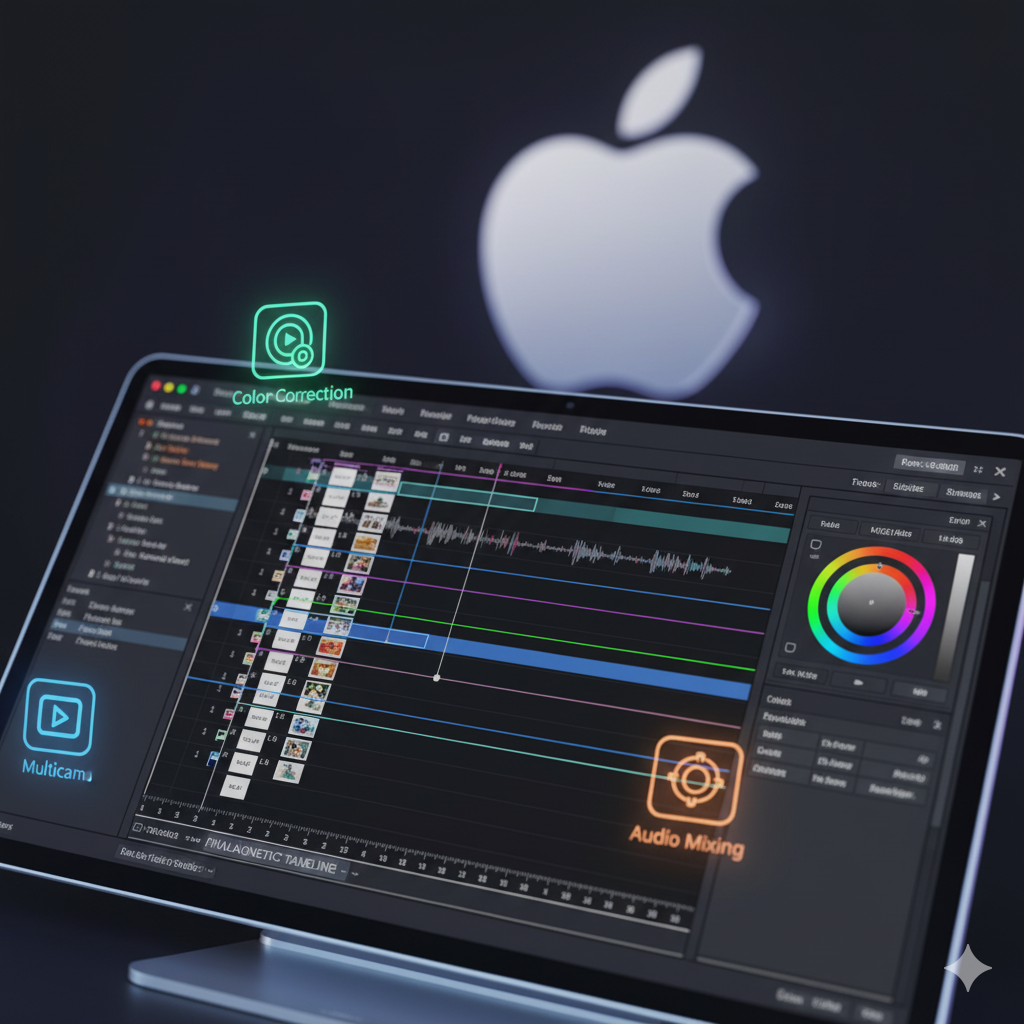
And honestly? I’ve been using it for a while, sometimes for fun little projects, sometimes for serious stuff, and I gotta say—it still holds up. The magnetic timeline, the way you can slap in connected clips, trim them, throw in a green screen or some slow motion, all without pulling your hair out… that’s why editors keep going back.
This review isn’t gonna be squeaky clean like some manual. I’m just dumping what works, what’s annoying, and little tips and techniques that might save you hours of screaming at your screen. So if you’re here for that perfect corporate style rundown, sorry—you’re in for a slightly messy blog rollercoaster.
Overview of Final Cut Pro (aka why people even use it)
So what’s the big deal? Why do people keep comparing Final Cut Pro to DaVinci Resolve, Adobe Premiere, blah blah blah?
Features:
- It’s a non linear editor, which means you can cut, rearrange, duplicate, move clips around without breaking stuff.
- It’s got all the advanced editing tools you need for complex projects—compound clips, synchronized clips, multicam clip editing.
- You can do multi camera editing like a boss. I’m talking about switching between camera angles mid scene with the angle editor.
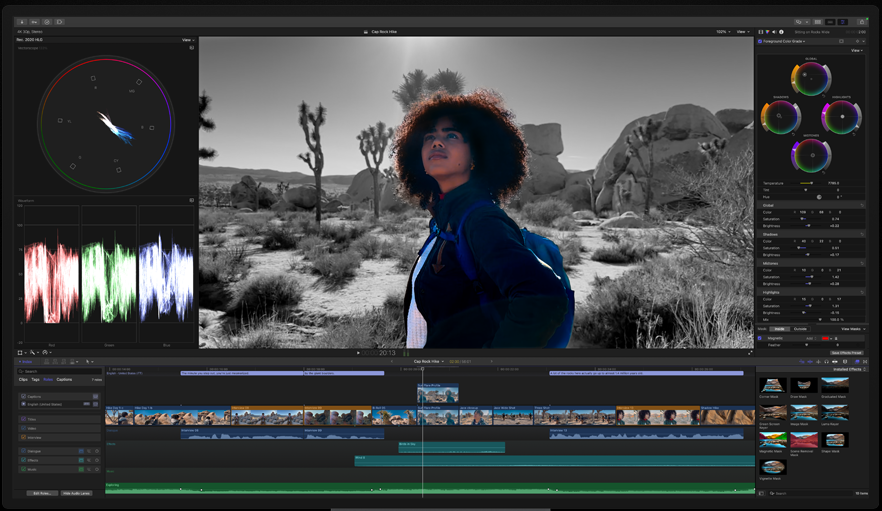
- Color grading and correction tools are built in—color board, color wheels, color curves. No need for third party plug ins just to adjust brightness.
- Audio is actually manageable thanks to audio lanes, voice isolation, and ways to reduce background noise or isolate people’s spoken audio.
It’s also built for Macs. Like, you throw it on a Mac Studio or MacBook Pro with Apple silicon and it just flies. Rendering smooth slo mo on an M2 chip is insane compared to older Intel Macs.
Oh and, let’s not forget—Apple keeps adding funky features like cinematic mode, scene removal mask, enhance light, magnetic mask, all that Aish stuff. Sometimes it feels like they’re just flexing machine learning. But hey, free upgrades are free upgrades.
Pros
- Smooth on Macs, especially Apple silicon.
- No subscription—buy once, done.
- Magnetic timeline and connected clips = less stress.
- Advanced editing tools (compound clips, multicam editing, synchronized clips).
- Great color grading and audio tools (voice isolation, audio lanes).
- Works for both beginners and pros.
- Tons of YouTube tutorials and Apple support docs.
Cons
- Mac only. Sorry Windows folks.
- Interface can feel weird at first.
- Some effects (like scene removal mask) aren’t perfect.
- Can get expensive if you add Motion + third party plug ins.
- Heavy projects still need beefy hardware.
System Requirements and Optimization
Alright, let’s talk boring but important stuff: does your Mac even handle this?
Pro tip: don’t dump all your video files and audio clips into random folders on your desktop. Use custom column views inside Finder, name your clip names properly, and your life will be 10x easier when editing.
Also, background stuff—close Chrome. No seriously, Chrome will murder your RAM. Optimize your Mac before editing.
Apple has official support notes if you wanna see exact requirements.
Setting Up Your Project
This is where most beginners overthink. You don’t need to stress.
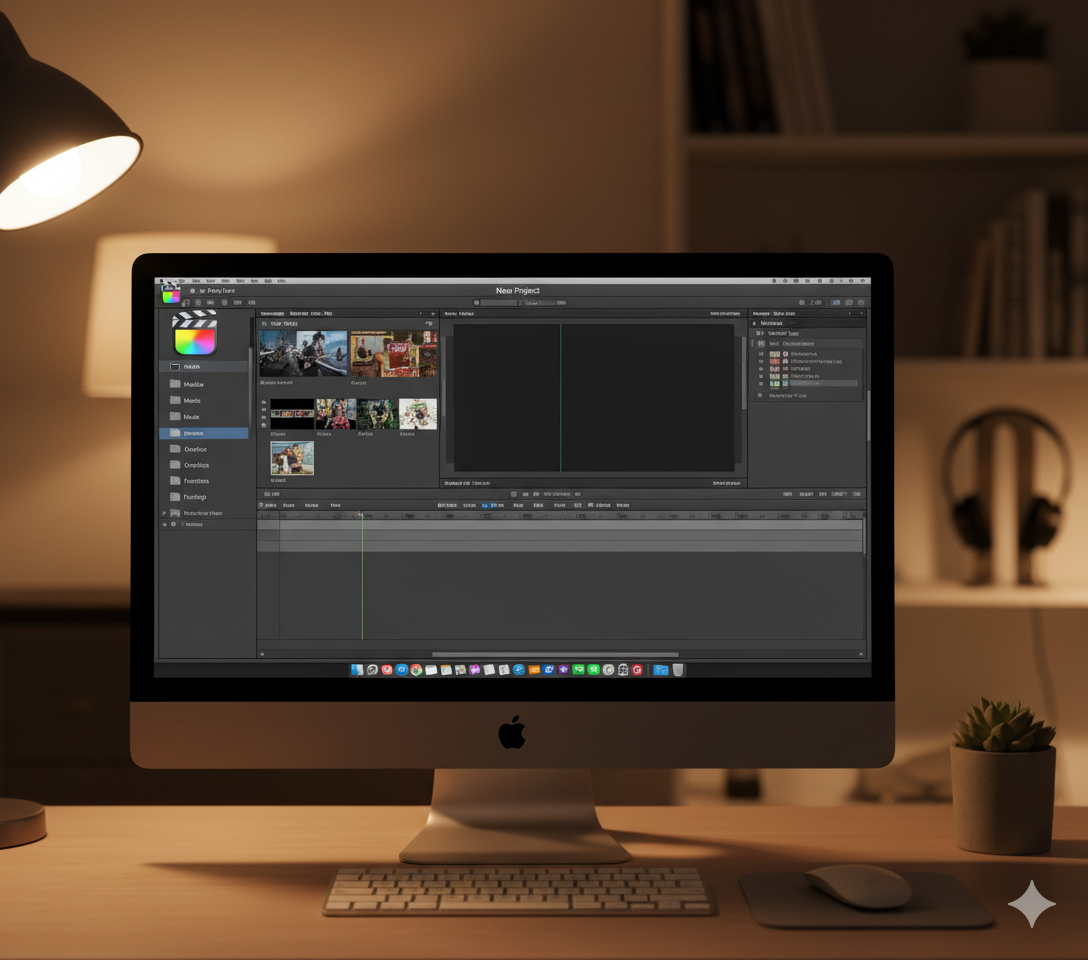
- Open Final Cut.
- Hit “new project.”
- Set your frame rates and resolution (don’t go crazy, stick to what your footage was shot in).
- Organize with smart collections—drag in your video files, audio, still images.
- Drop everything into the timeline.
Now, pro tip: name your clip names early. Like if you’ve got “IMG_2357.mov” and “IMG_2358.mov” you’re gonna go insane later. Rename it “Interview_Main” or “B Roll Park.” Trust me.
Also, multicam editing? Set up your multicam clip right away using the angle editor. Sync by audio if you didn’t slate. It’s magic when it works.
Basic Editing Techniques (a.k.a. stuff you’ll do 90% of the time)
Honestly, editing is mostly just cutting and arranging clips, trimming clips, moving them around. You’ll use the blade tool more than anything.
Connected clips are your friends. Want to add music? Connect it to the primary storyline. Want a title card? Same thing.
The magnetic timeline keeps everything together so you don’t end up with random black gaps. Sometimes it’s annoying, but mostly it saves time.
Freeze frame is underrated. Like, you can stop a moment mid action, add text, or just make a funny pause.
If you wanna learn fast, just play around and also check this Apple guide. It’s simple once you try.
Advanced Editing Techniques
Ok so if you’re past the basics, let’s talk compound clips, synchronized clips, and all that fun.
Compound clips basically let you bundle stuff together. Like if you made a complex intro with 10 clips and effects, wrap it into one single clip. Cleaner timeline, less stress.
Synchronized clips are a lifesaver for multi camera editing or mixing video with separate audio. You just line them up once and Final Cut keeps them synced.
Color grading? The color board is decent, but I love the color wheels and color curves for precision. Play with saturation, balance, contrast until it feels cinematic.
Oh, and machine learning—Final Cut now uses it for things like cinematic mode and even adjusting depth of field in supported footage. Feels a bit gimmicky sometimes but hey, options.
Visual Effects and Motion Graphics
Ok, this is where people either geek out or get lost.
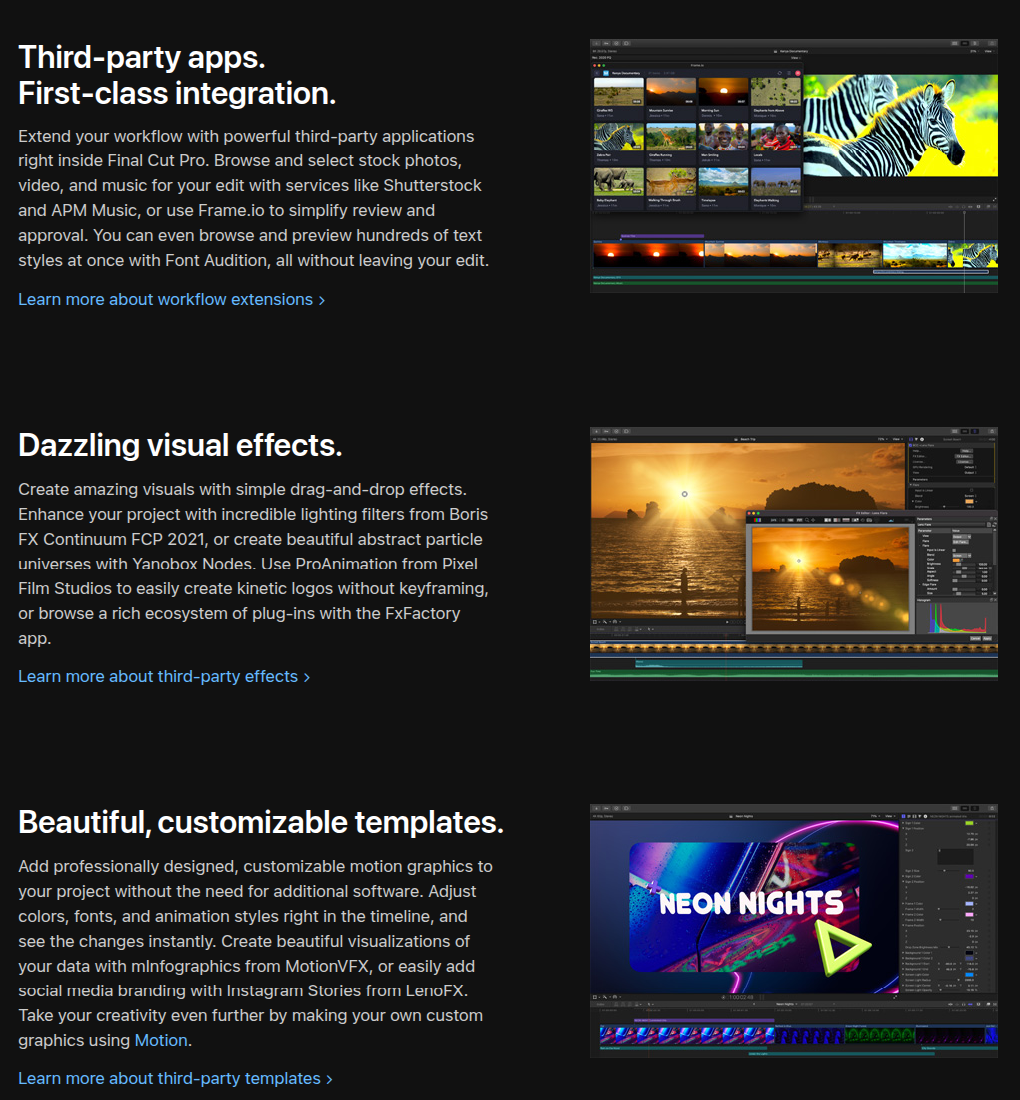
Final Cut has built-in effects and transitions, but for real motion graphics you’ll wanna use Motion (Apple’s separate app) or get third party plug ins.
That said, you can still do color correction, magnetic mask stuff, text animations, even HDR adjustments. You don’t need After Effects unless you’re doing crazy stuff.
Color Grading and Correction
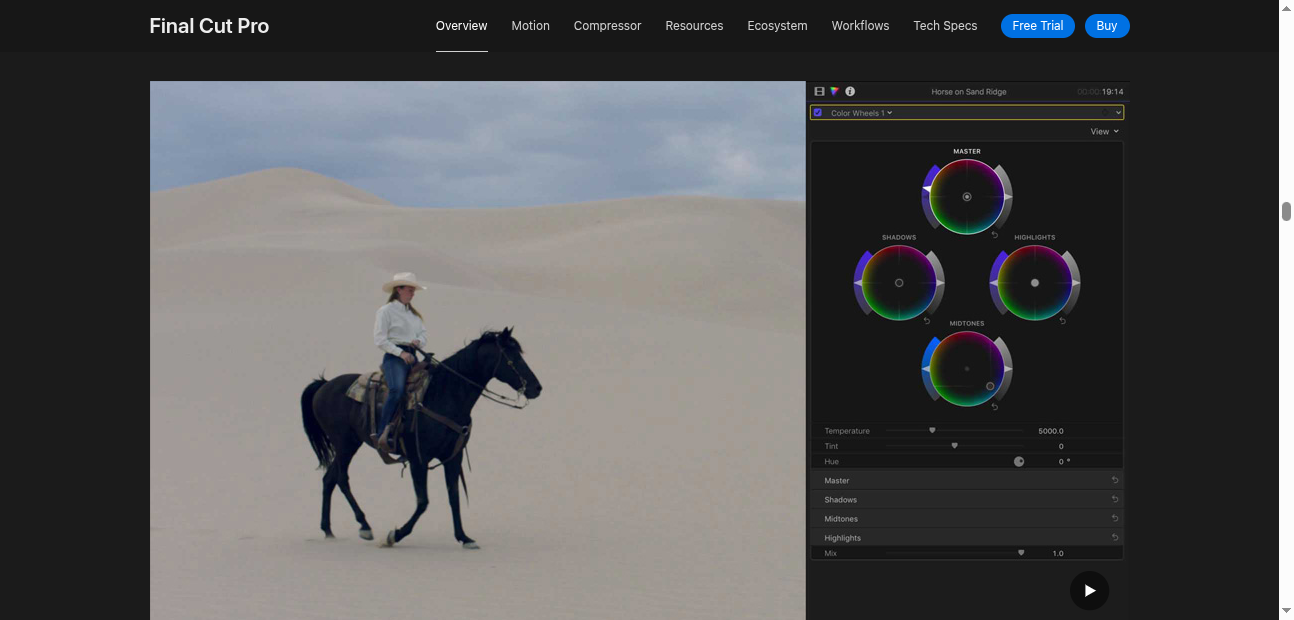
This deserves its own rant. Color grading is half the battle in making your footage look “professional.”
Final Cut gives you:
Don’t just slap on a LUT and call it a day. Play with these until it feels right. Watch YouTube tutorials because you’ll learn faster seeing someone else do it.
Editing HDR and 360° Video
Yup, Final Cut does HDR and even 360° video editing. Not everyone needs this but if you shoot in HDR or with a VR cam, it’s there.
SDR clips, HDR clips—you can mix them, just be mindful of color correction. It gets heavy though, so again: Apple silicon recommended.
Working with Closed Captions
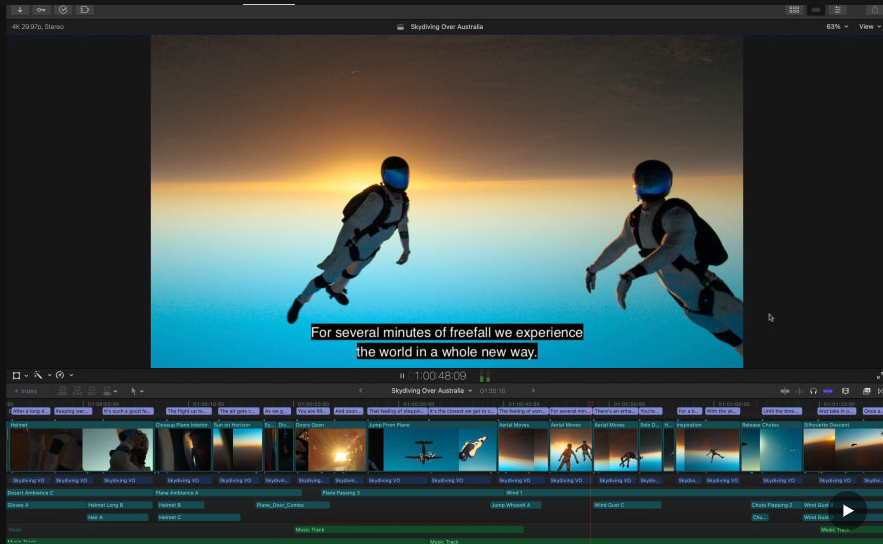
Accessibility matters. Final Cut lets you add closed captions directly, no need for third party apps.
You can even export captions with your final video file so platforms like YouTube or Facebook read them correctly. Handy.
Advanced Project Management
Once your projects get huge, media management becomes life or death.
Use smart collections, custom column views, and keep track of where your media files actually live. Don’t scatter them across 5 hard drives.
Collaboration is decent too—you can share video projects or libraries with other editors.
Final Words
So yeah, that’s my long messy love-hate review of Final Cut Pro in 2025. It’s not perfect. It makes me curse sometimes when I can’t figure out why a connected clip jumped to the wrong spot. But at the same time, it’s fast, reliable, and makes video editing feel less painful.
If you’re on a Mac already, it’s worth it. If not, well, you’ll need to either buy into the Apple life or stick with DaVinci Resolve.
Anyway, don’t overthink it. Open Final Cut, throw in your footage, play with trimming clips, add some music, try color correction. You’ll get better by actually editing, not by reading 20 blogs like this.
So yeah… go edit something.
