

How to Use Pika Labs for Video Creation
You’re here because you heard about Pika Labs (or maybe “Pika AI” if you’ve been crawling Reddit threads) and you’re wondering: okay but how do I actually use this thing to create amazing videos without losing my mind?
Good news: I’ve spent way too much time playing with Pika Labs AI, messing up prompts, creating cursed clips (yes, I once turned a cat into a melting candle—don’t ask), and finally figuring out what works.
This guide? It’s my step-by-step guide on how to use Pika Labs for video creation.
How to Use Pika Labs (Step by Step Guide)
So, first things first. Don’t overthink it. Using Pika AI is kinda like ordering food online—you click, you type, and boom, something shows up.
Sometimes it’s delicious, sometimes it’s… well, let’s just say “experimental.”

Here’s the step by step guide I wish someone gave me before I wasted hours:
Sign Up → Just go to Pika Labs official site and hit that shiny “Join” button. If you’ve got a Reddit account, you can even use that to log in (yep, they made it easy).
Explore the Dashboard → It looks intimidating at first, but relax. You’ll see options like text prompts, upload images, and a whole bunch of video settings like aspect ratio, frames per second, camera movements, etc.
Write Your First Prompt → Start simple. Like, “a dog skateboarding in Times Square, cinematic style.” Don’t overcomplicate.
Upload Reference Images (optional) → This is where the magic happens. Got a product photo? Or your dog’s face? Upload it, and Pika Labs AI will try to animate it into your generated video.
Customize the Details → Wanna mess with aspect ratio (9:16 for Instagram Reels, 16:9 for YouTube, square if you’re old-school Facebook)? You can. Wanna adjust camera zooms, pans, or spins? Yep, it’s there too.
Hit Generate → Wait a few seconds (or a minute if your internet connection is slow—trust me, I rage quit once and it turned out my Wi-Fi was just dead).
Download & Share → Once it’s ready, download your shiny new video. Share it on Instagram, TikTok, wherever. Flex a little.
Side note: If you ever get blocked by network security (it happens randomly sometimes), don’t panic. Just file a ticket with the support team. I once got blocked by mistake, filed a ticket, and they unblocked me pretty quick.
Create Amazing Videos with Text Prompts
Okay, so here’s the fun part. The video creation process in Pika is all about prompts. You type words, and out comes a video. Magic, right? Well, sorta.
The trick is in the details. If you just write “a cat dancing,” Pika AI might give you something, but it’ll probably look weird. Add style, scene, vibe. Example:
“A fluffy white cat breakdancing under neon lights, anime style, smooth camera pan.”
That’s when dynamic visuals start happening.
Pro tip: Use negative prompts too. Wanna make sure your cat doesn’t suddenly sprout three heads? Add something like: no distortion, no glitches, realistic body proportions.
Camera Movements: The Secret Sauce
This is where your generated video stops looking like a static slideshow and starts looking alive. Camera movements in Pika Labs = spice.
I once tried adding “camera shake” for an action vibe, and the result looked like I’d recorded it while falling down the stairs. So yeah… experiment, but keep it smooth.
Pika Bot: Your Sidekick
Let me be real: sometimes your brain is fried and you don’t know what to prompt. Enter Pika Bot.
It’s basically like a chat buddy built into the platform. You can throw ideas at it—“hey, what if I want to create a cyberpunk car chase?”—and it’ll help you structure a prompt. Honestly, it’s like having a co-writer who never sleeps.
Bonus: It’s great for beginners who are scared of the blank text box.
Pika AI vs. Pika Labs (What’s the Difference?)
Quick clarification because people keep mixing these up. Pika Labs is the company/platform. Pika AI is the engine/technology powering it. Think of it like:
Both terms get thrown around, but now you know.
New Features & Updates
Here’s the deal: Pika Labs keeps dropping new features like it’s Christmas every other week.
Recently they added:
If you wanna keep up, stalk their Twitter/X account because they post updates there first.
Editing & Refining Your Videos

Look, no generated video is perfect on the first try. (If it is, buy a lottery ticket because you’re lucky as hell.)
Inside Pika, you can do some light editing:
But if you’re serious, I’d say download your video and polish it in something like CapCut or Adobe Premiere Pro. Think of Pika Labs as the idea factory—you still might want a finishing touch before sharing.
Use Cases: Where to Actually Use These Videos
So you’ve got your shiny new video. Now what? Here are some solid use cases:

Limitations (Keeping It Real)
Before you sell your video camera and crown Pika Labs the king, let me throw in some honesty:
But hey, for what it does, it’s still wild.
FAQs – How to Use Pika Labs
Q: Do I need editing experience to use Pika Labs?
Nope. If you can type, you can generate videos. That’s the beauty of it.
Q: Can I use Pika videos commercially?
Yep, Pika Labs allows commercial usage (double-check their terms though).
Q: What happens if I get blocked?
It happens. If you see “think you’ve been blocked,” just contact support. Usually it’s blocked by mistake file a ticket type of deal.
Q: Is it free?
There’s a free trial. After that, you’ll probably wanna check their subscription plan options.
Q: Can I control video styles?
Yes—choose between anime, realistic, cinematic, and more. Or just write it into your prompt.
Q: Can I collaborate with others?
Not directly, but you can share prompts, use Pika Bot, and swap ideas.
Final Thoughts: Should You Use Pika Labs?
Look, if you’re into video creation but don’t have time (or patience) to learn After Effects, Pika Labs AI is a lifesaver. It won’t replace pro editors (yet), but it’s perfect for creators, marketers, or just curious nerds who want to play with AI video generation.
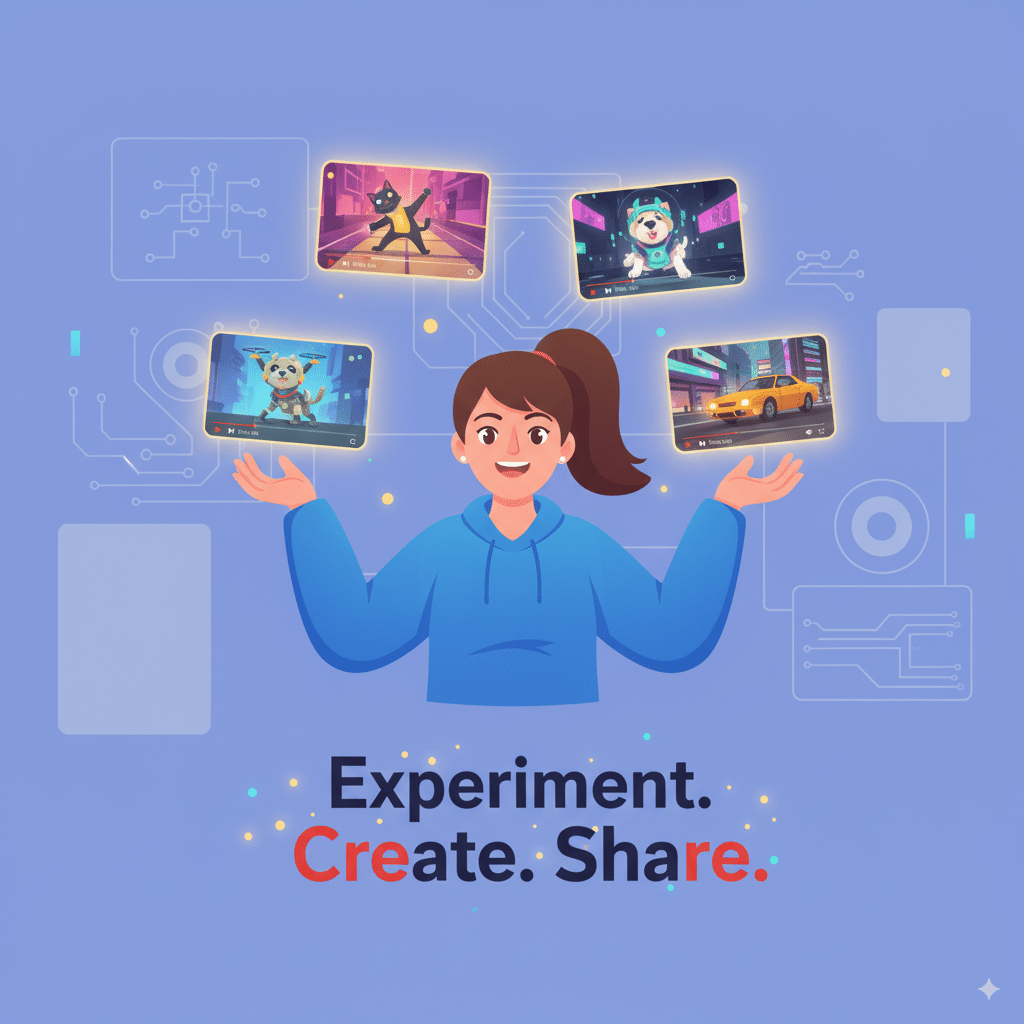
My advice? Start small. Create your first video today. Use silly text prompts. Upload weird reference images. Experiment. Mess up. Laugh at the fails. Share the wins. That’s how you’ll actually learn how to use Pika Labs.
And hey, when you make something epic, tag me on Instagram—I wanna see it.
