

Mastering LumaFusion: Essential Tips for Pro Video Editing Success
So, okay, let’s just say it straight, LumaFusion has kinda become the gold standard when people talk about a video editing app for iPad Pro or iPhone. And honestly, if you’ve ever tried to edit a whole project on a touchscreen, you know it can either feel like magic or like absolute chaos depending on the app.
And this one, well, it’s somewhere in between sometimes — super polished but still with quirks. People love calling it the “Final Cut Pro for iPad” (and yeah, that’s not totally wrong). But also, it’s not just trying to copy desktop NLEs (non-linear editors). It’s got its own vibe.
Let’s get into this messy review — not just features, but like, the real stuff, what works, what makes no sense, what’s new in 2025, some pro tips, some oops moments. And yep, all the lumafusion interface, magnetic timeline, dual mono audio support, multicam studio, all the nerdy terms are coming your way.
Why Even Bother With LumaFusion?

So here’s the deal: if you’re a storyteller worldwide (I know, cheesy phrase, but whatever) and you don’t wanna lug around a laptop, LumaFusion is that app that makes sense. It’s like you get pro video editing tools but in a “hey I’m on a plane editing with my Apple Pencil” way.
You can create multiple layer edits, stack like 6 additional audio tracks, throw in multilayer titles, and it still runs smooth (well, most of the time). And I mean, that’s wild when you remember this is all happening on an iPad.
And unlike some apps that lock you behind subscriptions right away, LumaFusion gives you a solid chunk of full access right out of the box. (Though yeah, there’s the Creator Pass subscription thing now — which we’ll rant about later because, sigh, monetization).
Navigating the LumaFusion Interface (a.k.a. not as scary as it looks)
The first time you open it, the lumafusion interface can feel like “woah, too many buttons.” But give it a minute. The touch screen editing experience actually flows once you get the hang of it.
And you can import custom fonts if you’re picky about titles, which I am, because default fonts always look like school projects.

Editing Fundamentals (a.k.a. don’t skip the boring stuff)
Yeah yeah, I know people wanna jump straight to speed ramping and green screen wizardry, but the truth is, if you don’t nail the basics like split clips, trim, and arrange them cleanly, your whole edit looks amateur.
LumaFusion makes splitting clips stupid easy. Tap, slice, move. Done.
And the cool thing is, you can record VO (voiceovers) directly into the timeline. Like, literally tap record, rant into your iPad mic, and bam it’s in. Pair that with dual mono audio support if you’re using two mics and suddenly your vlog sounds like you had a studio.
Oh, and yes — sound effects. Don’t sleep on those. Even subtle clicks, whooshes, or favorite animations (animated presets basically) make a huge difference.
Advanced Audio Tricks (because bad audio ruins everything)
This is where LumaFusion punches above its weight. Most mobile editors? Meh audio. Here? You get:
And if you’re a control freak (same), you can use enhanced keyframing to tweak volume, pan, whatever across time.
Seriously though: spend time here. Everyone obsesses over color correction, but honestly, viewers forgive a slightly dull grade way faster than they forgive muddy audio.
Speed and Motion (make your edits pop)
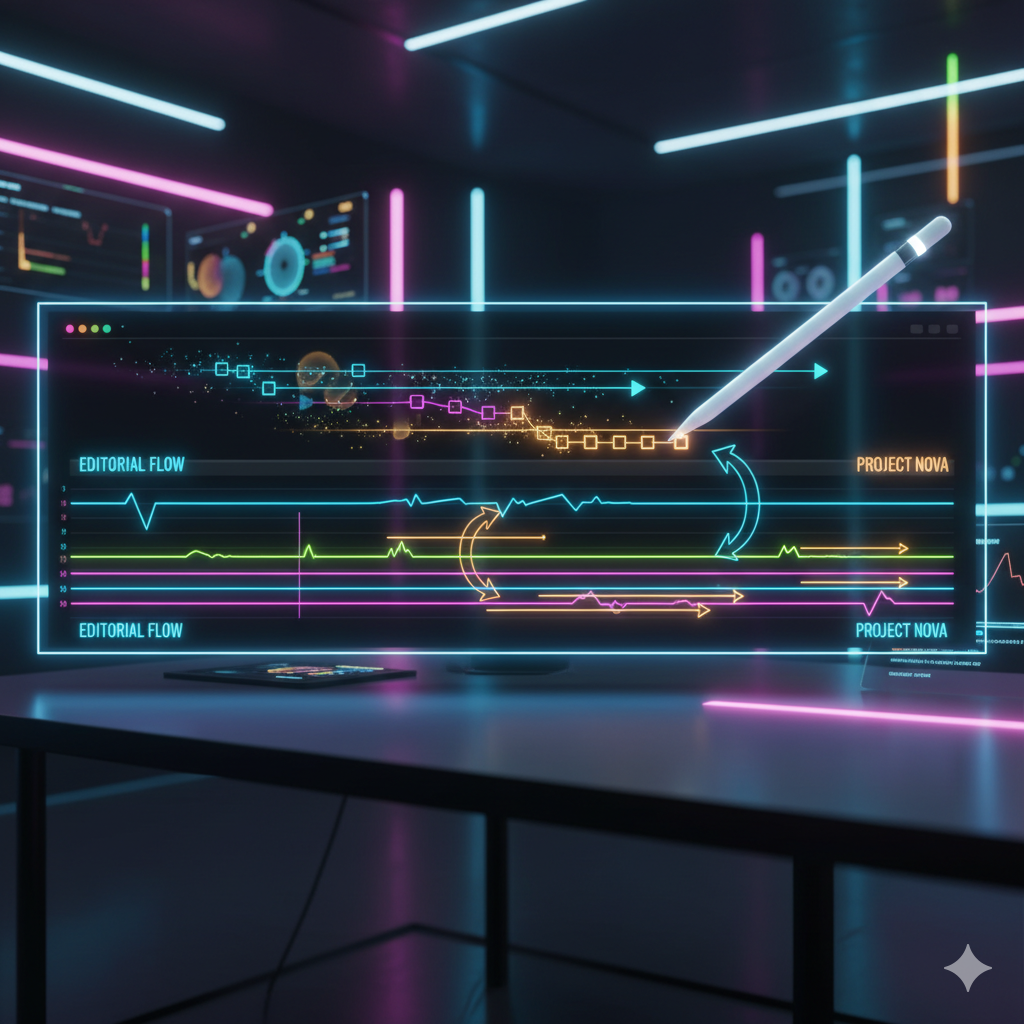
Okay so speed ramping is basically mandatory now because TikTok brain wants every video to feel like a rollercoaster. And yes, LumaFusion does it nicely. Slowmo, fast forward, custom curves.
Add animate effects, mess with layered effects, and you can get some really slick looks without desktop NLEs. The ultimate timeline preview helps you not lose track when you stack too many moves.
You can also combine shapes with motion paths. It sounds nerdy but like — think DIY motion graphics. Not After Effects level, but decent.
And with Apple Pencil, animating keyframes feels almost fun (almost).
Color Correction & Chroma Keys
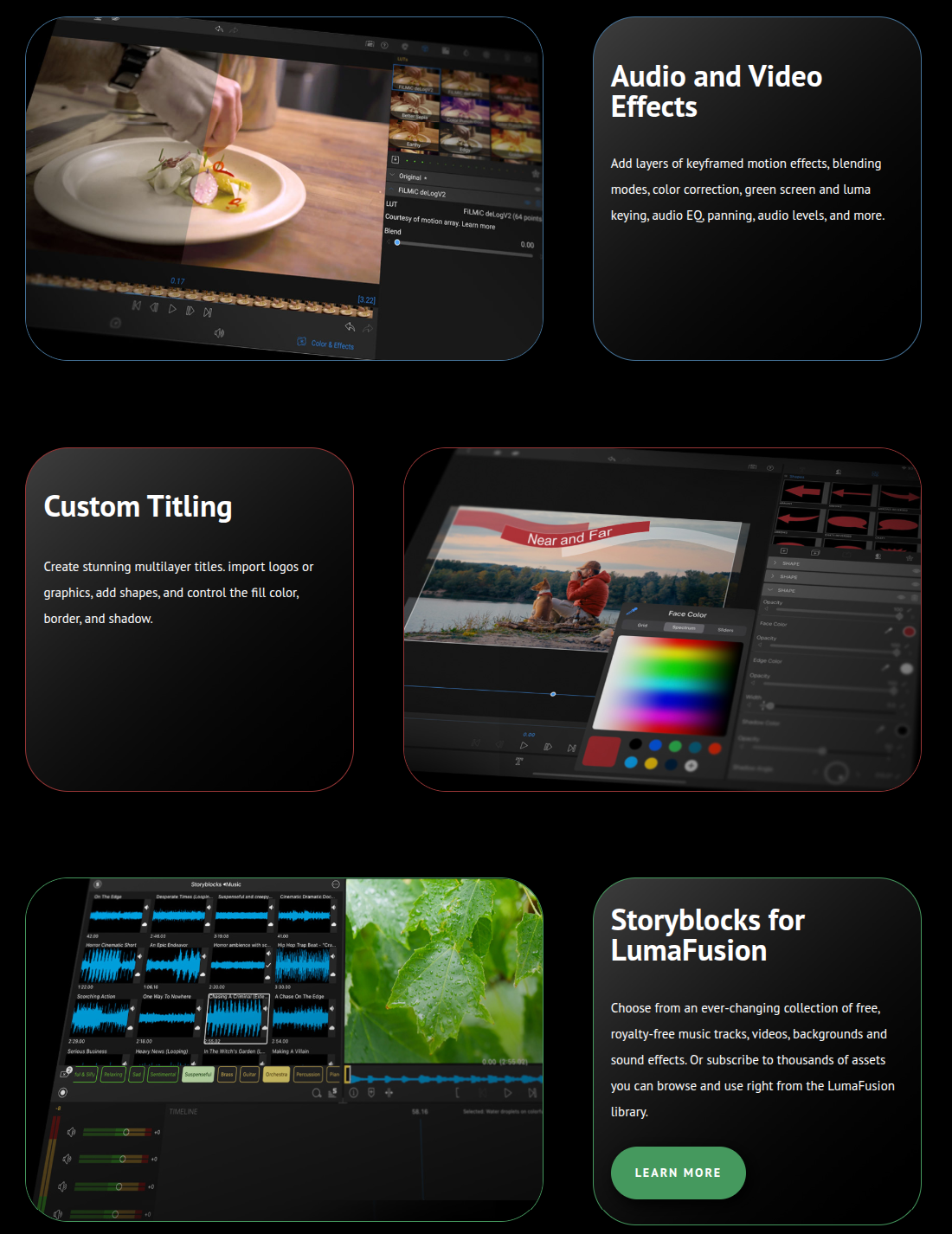
This is where it feels like a mini Final Cut. You get proper color correction, effect presets, and yep — chroma keys for green screen. Is it Hollywood quality? Nah. But for YouTube or short films? Totally fine.
Also, if you’re lazy (hi, it’s me), you can save and share title presets or effect looks. So once you nail your “own look,” you don’t have to redo it every time.
Multicam Studio (newish and cool)
So this is one of those “hidden gems.” The multicam studio lets you sync multiple devices and cameras together. You see all angles, switch liveish, and then still fine tune later.
It’s not perfect — sometimes sync drifts if your mics aren’t good — but for interviews or band performances it’s gold.
And paired with seamlessly transfer projects between iPad and other apps? Game changer if you’re bouncing between devices.
Titles, Text, and Fonts (don’t make it ugly please)
You get creative titles, multilayer text, design eye catching titles — all that jazz. Import your own fonts, adjust strokes, animate text.
Pro tip: spend like 10 minutes browsing online tutorials for titles because the default looks are… well… meh. You want something clean, not 1998 PowerPoint vibes.
Storage & Workflow Tips (from someone who messed it up)
And yeah, the project flexibility is real — you can open one clip, test an effect, then bring it back to the main cut without breaking things.

Pros
- True pro video editing on iPad/iPhone.
- Handles multiple layer edits, six additional audio tracks, etc.
- Exceptional free support (forums, updates, etc.).
- Magnetic timeline actually makes editing faster once you stop fighting it.
- Can actually rival Final Cut Pro for a lot of projects.
- Offline editing! No forced cloud stuff like some apps.
Cons
- UI learning curve (the lumafusion interface can overwhelm newbies).
- No real desktop version (some people just want to plug into Mac).
- Big projects still stutter, even on iPad Pro.
- Subscription creep (Creator Pass subscription) for new features.
- Some effect presets look cheap if you don’t customize.
FAQs (because people keep asking)
Q: Is LumaFusion better than Final Cut Pro on iPad?
A: Depends. Final Cut feels heavier, more desktopy. LumaFusion feels faster and more optimized for touch.
Q: Do I need Apple Pencil?
A: Not “need,” but smooth handling for keyframes and titles is way easier with it.
Q: Can I do green screen?
Yep, full chroma keys support. Works best with decent lighting though.
Q: Is it worth it without Creator Pass?
Yeah, the base app is still stacked. The pass just adds new features and extras.
Final Words (kinda messy)
So yeah, if you’re still reading (wow, thanks), the bottom line is this: LumaFusion is the video editor that actually makes sense on iPad. It’s not perfect — some things are clunky, some features are locked behind extras, and sometimes it feels like a “desktop NLE cosplay” — but you know what?
It works. It’s fun. It’s powerful. It’s honestly insane we can do this on a tablet while sitting in bed or on a flight.
And like, you’ll find your rhythm. Maybe you’ll fight the magnetic timeline at first, maybe your first few edits look rough, but once you get it… yeah, it’s your own look.
I’d say — if you love video editing, if you’re into mobile workflows, or if you just want to stop pretending you’ll carry a laptop everywhere — LumaFusion in 2025 is still the app to beat.
(And now I’m gonna go rewatch my timeline for the tenth time because I still don’t trust my audio ducking, lol).
