

Discover the Best Features of VN Video Editor for Effortless Editing
VN Video Editor: So, what’s the hype?

Okay, so you’ve probably seen “VN Video Editor” pop up all over TikTok, YouTube, random Reddit threads, or maybe even from that one friend who always swears by “free video editing apps” but, like, never explains properly.
Well—VN (also called VN Video Editor Maker, it’s by Ubiquiti Labs LLC if you’re into knowing that stuff) is basically this free video editing app that works both on your mobile and desktop devices, and the wild part is… it doesn’t feel cheap.
Like, a lot of free editors slap watermarks, lock basic stuff behind paywalls, or just crash mid edit (ugh we’ve all been there). But VN? Nope. You can edit video clips, throw in music and video templates, mess with color grading filters, and even export at different video resolutions without coughing up a subscription fee. That’s already a win.
Key Features of VN Video Editor (a.k.a. the fun stuff)
Here’s the thing—you’ll find a lot of features that scream “advanced video editor” but also it’s weirdly beginner friendly. That mix makes it kinda addictive.
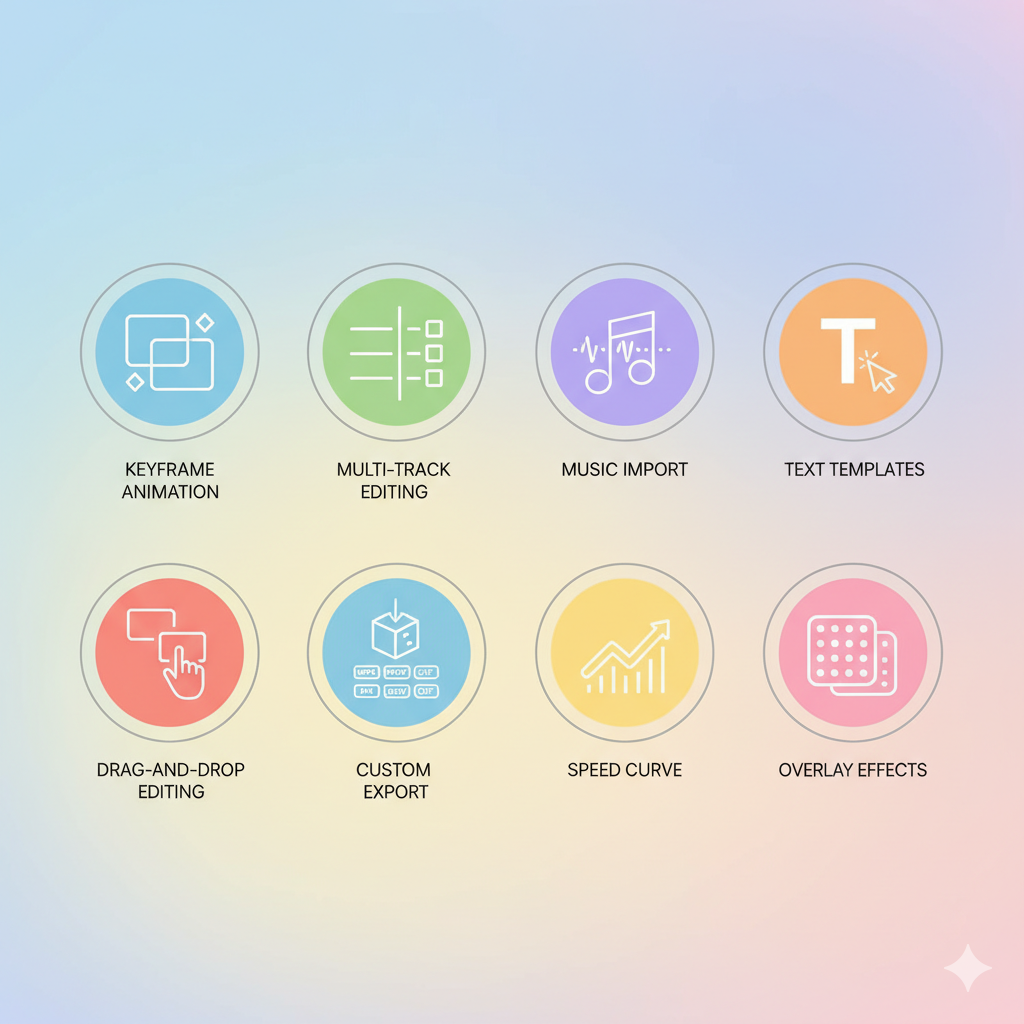
- Keyframe animation → Yes, you can actually control movement of text, objects, or clips frame by frame.
- Multi-track editing → Think layering audio, video, and effects, kinda like a lite version of Premiere Pro.
- Music import → Add your own tracks, or use sound effects, or even create music and video templates if you’re feeling pro.
- Rich text templates → Tons of fonts, stickers, text editing tools. Some are cringey, but some slap.
- Drag and drop editing → Makes cutting and rearranging video clips way less painful.
- Custom export settings → Adjust frame rate, video resolution, and even video styles (for Instagram, YouTube, etc.).
- Speed curve and time remapping → Wanna do those dramatic slomos or speed ups? Yep.
- Overlay and blur effects → For that aesthetic look.
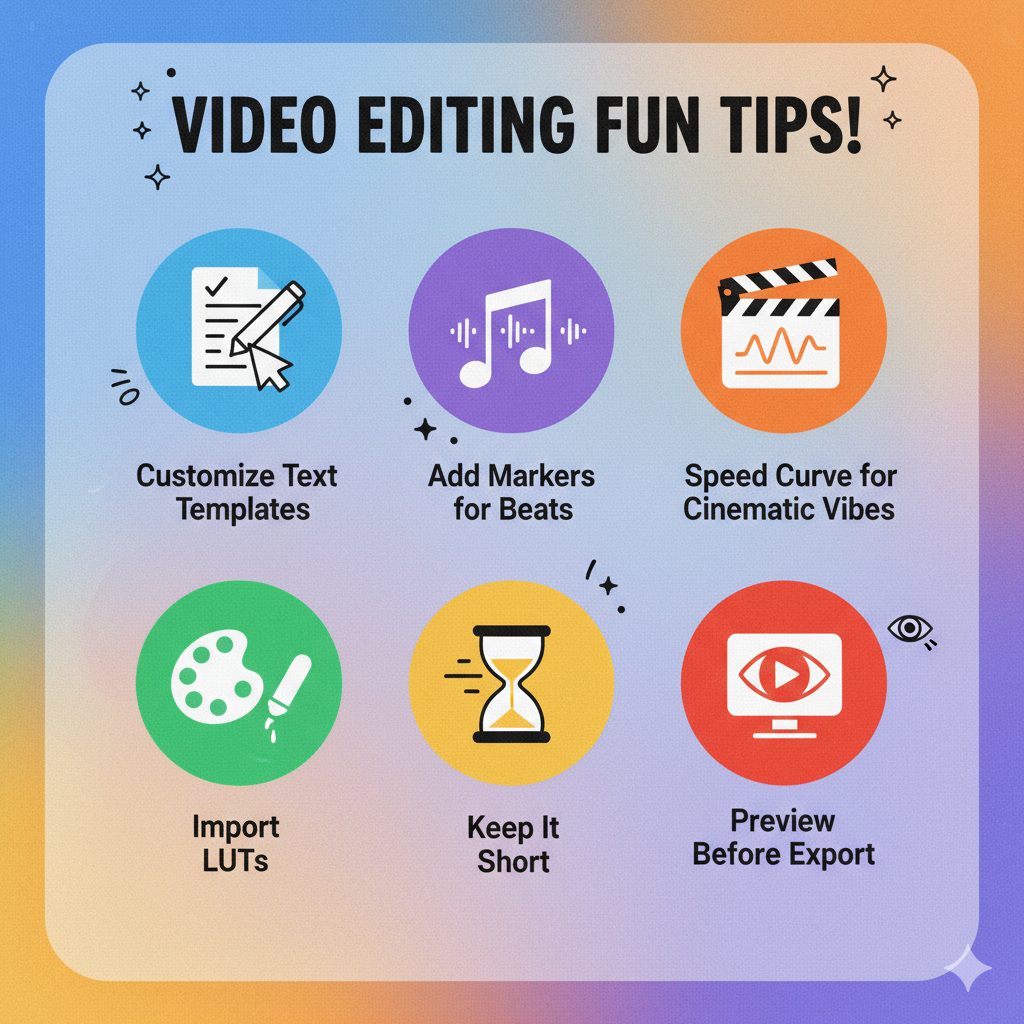
And because it’s 2025, of course it has creative templates, trending effects, and lets you import LUTs (.cube files) if you’re into color grading like a Hollywood DP.
Pros
- Totally free video editing app (no sneaky watermark nonsense).
- Works on mobile and desktop devices.
- Intuitive interface = beginner friendly.
- Advanced video editor tools like keyframe animation & multi-track.
- Tons of music and video templates + creative templates.
- Custom export lets you choose video frame rate & resolution.
- No ads (bless).
Cons
- Some trending effects feel dated fast.
- Limited stock media library compared to CapCut or Canva.
- Desktop version sometimes feels like a port, not fully optimized.
- Big projects can lag if your PC doesn’t meet the system requirements (hello, 4GB RAM minimum).
- No built-in cloud sync unless you transfer projects manually.
👉 Side note: Winston AI might be the “teacher favorite” just because it looks trustworthy. Kind of like when Turnitin first came out.
Getting Started with VN Video
Honestly, it’s too easy. Just download the VN app on your phone or desktop device, log in (or don’t, you can actually just edit without an account if you want), and hit New Project.
I mean, who does that? But hey, it’s there.
Video Editing Capabilities (a.k.a. where VN flexes)

So here’s where VN stops being just a “cute free app” and starts punching way above its weight.
System Requirements (don’t skip, or you’ll regret it)
If you’re using VN on desktop, don’t just assume it’ll run. You need:
And yeah, admin rights—so don’t install it on your school laptop lol.
Tips for Editing Like You Know What You’re Doing
FAQs About VN Video Editor
Q1: Is VN really free?
Yep. 100% free. No watermark. No forced ads. No sneaky “oops upgrade to Pro.”
Q2: Can I use VN Video Editor on both mobile and desktop devices?
Yep. Works on Android, iOS, Windows, and macOS.
Q3: Does VN support high-quality exports?
Yep again. You can set video resolution, frame rate, and even choose custom export options.
Q4: Can I transfer projects between devices?
Yes, but not automatically. You gotta transfer projects via Wi-Fi or export and re-import.
Q5: Does VN work for professional editors?
Honestly? If you’re a full time editor working with clients, you’ll probably need Premiere, Final Cut, or DaVinci Resolve. But VN is perfect for amateur video editors, content creators, or just quick projects.
Final Words (not a neat conclusion, just thoughts)
So yeah, VN Video Editor is honestly one of those apps I didn’t expect much from at first, but then it became my go-to for quick edits. I mean, it’s a free video editing app, it lets me edit video clips without crashing, and it’s got both amateur and kinda advanced video editor vibes.
Is it perfect? Nah. Sometimes it feels like it’s missing “all the features” you’d find in something like Premiere, and some effects are… well, cheesy. But you know what? For TikToks, YouTube shorts, Instagram reels, or even mini projects on desktop, it’s killer.
If you’re still stuck thinking “should I download VN app or not?”—just do it. Worst case, you uninstall. Best case, it becomes your new favorite.
👉 You can grab it free on the official VN site or your app store.
So yeah. That’s it. Go edit something cool.
